


Article by
Gabi
Hi, I'm Gabi - Co-Founder of Bestever Pics. Thanks for visiting our blog. We are working hard to produce content which we hope resonates with you. Feel free to drop us a line on socials or via the contact form on the site.
What if the best moments from your work event end up buried in personal chats and inboxes? A collaborative photo album for work event gives colleagues one place to share candid shots, but only if contributing feels easy while the event is still fresh.
Asking people to send photos later often means the request gets lost in busy inboxes and packed calendars. App downloads can add another hurdle, especially on work devices, so a simple upload route makes it easier for busy attendees to contribute.
This guide covers how to set up the album, make access clear, and organize photos for the right audience. You’ll find practical ways to invite contributions during the event and follow up afterwards, without leaving photo collection as another task for guests to remember.
Key Takeaways
- Set a clear purpose and audience for your collaborative photo album for work event before inviting colleagues to contribute.
- Choose an upload method by weighing the steps attendees need to take, access friction, and the effort required to keep photos organized.
- Give attendees brief instructions, place the album access point where they’ll notice it, and explain who can view the photos.
- Test the complete scan-to-upload process yourself before sharing it at the event.
- Consider a QR-linked web album when you want colleagues to contribute without downloading an app.
Why a Collaborative Photo Album for a Work Event Works
After a conference, team day, or company celebration, candid photos can end up scattered across personal phones, chats, and inboxes. A shared album gives colleagues one place to contribute and gives the organizer a clear way to gather those moments. It also makes it easier to share the collection with the people it’s intended for.
An app-free collaborative work-event album is a shared online space where attendees can add event photos through a web link, often reached by scanning a QR code, without installing a dedicated app. The organizer sets the purpose and explains who the album is for. Attendees add their own perspectives to the collection.
What makes a work-event album collaborative?
A folder populated only by the organizer can distribute selected images, but it doesn’t invite colleagues to contribute their own. Collaboration begins when attendees can add photos themselves. One person might capture a quiet conversation between sessions, while another shares a candid moment from a team activity.
These different perspectives can capture the informal moments between scheduled activities. A QR code is one way to make participation straightforward: attendees scan it to reach a web-based upload experience. For background on the history and evolution of image sharing, see this overview of image-sharing formats and platforms.
Which work events benefit from shared photo collection?
Shared albums can work well for conferences, team days, company celebrations, and product launches. Match the invitation to the event: display a QR code at conference registration, include it on a team-day welcome slide, or share it during a company celebration. For a product launch, explain who the album is for and whether the photos are intended for internal viewing or wider sharing.
Set expectations by telling attendees what to upload, how to access the album, and who can view the photos. A small internal gathering may need only a team message, while a larger event may benefit from visible instructions. For more participation ideas, see our corporate event engagement guide and this guide to digital photo sharing at modern events by Bestever.pics.
A shared album complements event photography rather than replacing professional photography. It offers a practical way to collect candid perspectives from attendees alongside any official images, then share those contributions with the intended audience.
How to Set Up a Collaborative Photo Album for a Work Event
A good setup answers three questions: who can contribute, how do they upload, and who’ll share the photos afterwards? Define the album’s purpose, prepare and test the upload route, invite contributions during the event, then organize and share the collection with its intended audience. That gives attendees a clear path from taking a photo to adding it.
- Choose the audience and purpose. Decide whether the album is for attendees, staff, or both, and explain who’ll be able to view the photos. Give people a simple prompt, such as sharing candid moments from the event, so they know what belongs in the album.
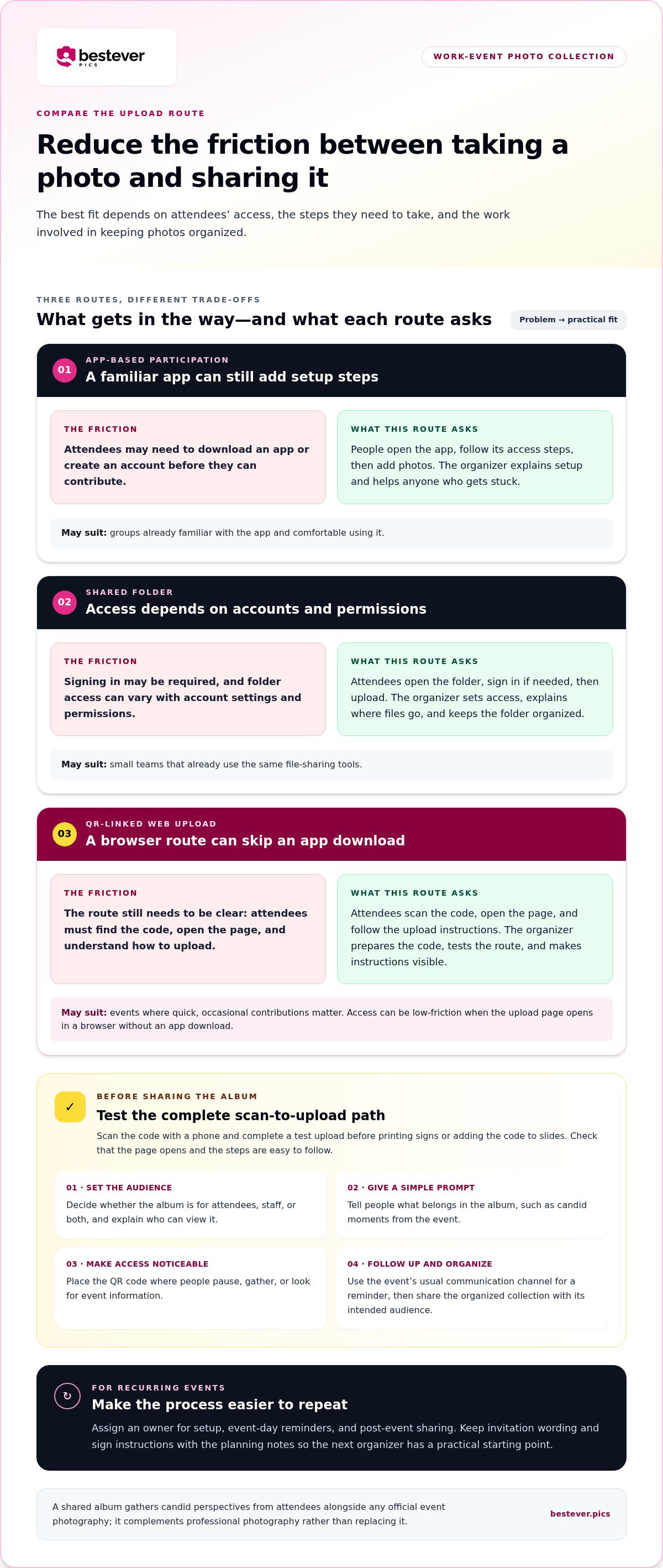
- Prepare the upload route. Create the album and QR code, then scan it with a phone and complete a test upload. Do this before printing signs or adding the code to slides. Confirm that the page opens and the steps are easy to follow on a phone.
- Invite contributions at the event. Put the QR code where people naturally pause, gather, or look for event information, such as a welcome area or presentation slide. Add one short instruction and a direct invitation, such as, “Scan to add a photo to the team album.” For a clearer explanation of QR-based access, see [LINK: how QR-code sharing works].
- Follow up and close collection. Send a reminder through the event’s usual communication channel for colleagues who didn’t upload on the day. Then organize the photos and share the album with its intended audience. Tell them who’ll maintain access and where to direct questions.
Make repeat events easier to manage
If the event happens regularly, assign an owner for setup, event-day reminders, and post-event sharing. This stops the process from depending on someone remembering every task at the last minute. Keep the invitation wording and sign instructions with the event team’s planning notes, so the next organizer has a practical starting point.
Compare Work-Event Photo Album Options Before You Choose
The right collaborative photo album for work event depends on who’s contributing, how often you run the event, and what steps colleagues can comfortably take. A tool that works for a small team may feel cumbersome at a conference, especially if attendees must install an app or create an account just to share a few photos.
| Option | Access friction | Attendee steps | Organizer workload | May suit |
|---|---|---|---|---|
| App-based participation | Higher if people need to install an app or create an account. | Download or open the app, follow its access steps, then contribute. | Explain setup and help attendees who get stuck. | Groups already familiar with the app and comfortable using it. |
| Shared folder | Varies with account access and folder permissions. | Open the folder, sign in if needed, then upload photos. | Set access, explain where files go, and keep the folder organized. | Small teams that already use the same file-sharing tools. |
| QR-linked web upload | Can be low when the upload page opens in a browser without an app download. | Scan the code, open the page, and follow the upload instructions. | Prepare the code, test the route, and make instructions visible. | Events where quick, occasional contributions matter. |
What should a work-event photo-sharing tool make easy?
Check whether someone seeing the invitation for the first time can tell what to do, where their photos will go, and who can view them. An extra download or account step may put off occasional contributors. An app-free route still needs to open properly on the devices and network attendees will use.
Corporate IT policies can affect which apps or websites colleagues can access on work devices. Test the upload route on a phone before the event and make the intended audience clear in the instructions. Treat live displays, branding, and other presentation features as optional requirements to assess, not automatic necessities.
How do one-off and recurring events change the choice?
For a single gathering, focus on a clear setup and simple event-day instructions. For recurring events, decide who owns the album process, reusable communications, and handover between organizers. A workflow that’s easy to repeat saves the team from rebuilding instructions every time.
Use these event photo collection best practices to shape a process that fits your team and event format.
Make Guest Contributions Easier With a Work-Event Photo Plan
A collaborative photo album for work event is easier to use when the invitation feels like a natural part of the gathering, not another task on the agenda. Make the upload route visible, explain what the album is for, and give colleagues room to join in when it suits them.
Where and how should organizers present the QR code?
Place the code where people already pause or look for information, such as registration, a shared table, or a welcome slide. Avoid spots people pass quickly or where the code might be obscured. Pair it with a short instruction that says what to do and why, such as: “Scan to add a candid photo to the event album.” For more display inspiration, see these creative QR code display ideas.
Before printing or presenting the code, test the full journey on a phone. Scan it, open the upload page, and try adding a photo. Make sure the instructions are clear and the route works as expected on the device you’re using. A quick rehearsal can prevent confusion during the event.
- Placement: Put the code where attendees naturally gather or check event details.
- Instructions: Give one clear action and a friendly reason to contribute.
- Expectations: Explain who the album is for and who’ll be able to view it.
- Reminder: Ask a host or event-team member to mention it at a natural pause.
- Follow-up: Send the album link through the event’s usual communication channel for anyone who missed the prompt.
How can hosts encourage candid contributions?
Invite colleagues to share informal moments as well as planned group photos. A quick mention during a welcome or break is usually less disruptive than stopping the programme for a separate photo request. Keep the invitation warm and optional, so people can contribute if they have a photo they’re happy to share.
Extra engagement ideas, such as displaying contributions during the event, are optional. Start with the essentials: working access, readable instructions, and a clear audience for the album. Add extras only if they suit the event and won’t distract from it.
Create a Repeatable Work-Event Album With Bestever.pics
For a busy host, collecting photos shouldn’t depend on colleagues remembering to send them later. Bestever.pics gives event attendees a web-based upload route: they scan a QR code and add photos to a shared digital album without downloading an app. That makes the contribution step easier to explain, especially when colleagues have limited time or prefer not to install an app for a single event.
What the host’s workflow can look like
Start by creating an event album and preparing its QR code. Before sharing it, scan the code on a phone and test the upload journey so you know what attendees will see. Then pair the code with a short invitation, such as, “Scan to share a candid moment from today’s product launch.”
Place the invitation where it fits the event, such as in a welcome message or on a screen attendees can refer to. People can add their photos during the gathering, while the organizer collects them in one shared album. Afterwards, follow up through the event’s usual communication channel and share the album with its intended audience.
For example, at a company team day, colleagues might capture conversations during a break or a group activity. The organizer can invite those informal shots alongside posed group photos, then send one follow-up note with the album access details. It’s a clear process that avoids asking everyone to track down and email images individually.
To make the approach repeatable, assign an owner for the QR code, event-day reminder, and post-event message. For recurring events, planners can keep the wording and handover steps with their event notes, then adapt them to each audience. [LINK: professional event photo-sharing options]
Match the album invitation to the event and be clear about who should contribute and who will receive the photos. An app-free upload route removes one common hurdle, but attendees still need a clear prompt and an easy-to-find code.
Make Your Next Work Event Easier to Remember
A collaborative photo album for work event brings attendee photos into one shared place instead of leaving them scattered across phones and chats. A clear purpose, simple upload instructions, and a named organizer make it easier to collect candid moments and share them with the right audience.
QR-code access lets colleagues reach a web-based upload experience without downloading an app, which can be a practical fit for busy work-event attendees. The platform supports photo sharing for corporate and work events, giving organizers a straightforward way to invite contributions alongside official event photography.
Start with the basics: test the upload route on a phone, put the QR code where attendees will notice it, and decide who’ll send the follow-up. A little preparation can help bring your event photos together in one place.
Your colleagues capture the moments. Give them an easy way to share them.
Frequently Asked Questions
How do you create a collaborative photo album for a work event?
Start by deciding who can contribute, who’ll view the photos, and what kinds of images you’re inviting people to share. To set up a collaborative photo album for work event attendees, create the album, prepare its access link or QR code, and test the upload process on a phone. Share clear instructions before or during the event, then follow up through the team’s usual communication channel.
Can guests upload work-event photos without downloading an app?
Yes. With a web-based photo-sharing platform such as Bestever.pics, attendees can scan a QR code to open an upload page in a browser without downloading an app. Test the scan-to-upload steps on a phone before the event. If colleagues may use work devices, consider how workplace access policies could affect the route and give attendees a clear alternative way to reach the album if needed.
How do you encourage employees to share candid event photos?
Make the invitation friendly, clear, and low-pressure. Ask employees to share informal moments as well as group photos, and explain who’ll be able to view the album. Place a QR code where people naturally pause, then have a host mention it during a welcome or break rather than interrupting the programme. A brief follow-up message gives people who missed the prompt another chance to contribute.
What should a company consider before choosing a shared event album?
Consider how attendees will access the album, how many steps they’ll need to take, and who should be able to view the photos. An app download or account requirement can add friction for occasional contributors, while workplace IT policies may affect access on work devices. Also weigh the organizer’s workload, the event’s audience, and whether optional features such as a live display would be useful.
Can a collaborative photo album work for recurring company events?
Yes, if the team makes the process repeatable. Assign an owner for album setup, event-day reminders, and post-event sharing, then keep reusable instructions with the event planning materials. For each gathering, update the invitation and access details to match the audience. A clear handover helps the next organizer understand who can contribute, who should receive the album, and where to direct questions.
What is the difference between a shared photo folder and an event photo album?
A shared folder is a general place to store and access files, so attendees may need directions about where to upload and how to use it. An event photo album is organized around one gathering and its contributors. The best fit depends on the group’s existing tools and access needs. A familiar folder may suit a small team, while an event-focused upload route can give attendees clearer instructions.
Should a work-event photo album replace a professional photographer?
No. An attendee album and professional photography serve different purposes. A shared album can gather candid perspectives from colleagues, while a professional photographer can provide dedicated event coverage. Use attendee contributions as a complement, not a replacement, when polished images or planned coverage matter. For an informal team gathering, candid uploads may be enough for your sharing needs, depending on the event’s purpose and audience.


