


Article by
Gabi
Hi, I'm Gabi - Co-Founder of Bestever Pics. Thanks for visiting our blog. We are working hard to produce content which we hope resonates with you. Feel free to drop us a line on socials or via the contact form on the site.
Working out how to download all guest photos at once can feel like another job after an event, especially when pictures are scattered across texts, email, social posts, and shared albums.
Saving images one by one takes time, and the right steps depend on where guests shared them, what permissions you have, and which device you’re using.
This guide explains how to gather photos from common sharing sources, choose a batch-download method, and organise the files so they’re easier to find later. It also covers platform limits and access settings to check before you start.
Key Takeaways
- Check the album’s download permissions first. The owner’s settings may affect what you can save.
- Choose a desktop or mobile method based on the collection size, available storage, and export options.
- Match the download method to where the photos were shared. Some albums support batch exports, while messages may require separate saves.
- If photos are spread across conversations or albums, gather them in a consolidated folder before downloading.
- For future events, a shared gallery with QR-code uploads can keep guest photos together without requiring an app download.
How to Download All Guest Photos at Once: Start With Their Source
To figure out how to download all guest photos at once, first identify the album or service where guests uploaded them. “All at once” usually means exporting an album in one batch instead of saving each photo separately. Whether that option is available depends on the platform and your permissions.
Start by finding where the pictures live. A shared gallery keeps uploads together, while photos sent through texts or posted on social media may need to be gathered separately. Cloud folders can hold groups of files, but access and owner settings affect what you can save. These different ways of distributing digital images are examples of file sharing technologies.
What “download all guest photos” can mean
An album export saves the album’s contents as a batch, if the platform offers that option. Multi-select is different: you choose several images yourself. An online album is not automatically saved to your device. Before you begin, confirm that you can both view and download the photos.
- Access: Can you open the album with your account or link?
- Permission: Does the owner allow downloads?
- Destination: Is there enough storage on your device or drive?
Find out where the guest photos were uploaded
Check the host’s gallery, cloud albums, event platforms, and relevant message threads. If an album is restricted to invited accounts, ask its owner for access or a consolidated folder. Keep a list of the sources you check so you can see what you’ve found and what is still missing.
Download controls can differ between devices. For future events, these best practices for collecting event photos can help keep guest uploads organised from the start.
How Bulk Downloads Work Across Shared Albums and Cloud Services
The export option depends on where the photos are stored. A shared event gallery or cloud album may let you download a group of images, while photos in messaging threads often need to be saved conversation by conversation. Album owners can also control who may download, so viewing access does not always include permission to save the collection.
Shared galleries and cloud albums
Open the album and look for a download or export control. Depending on the service, you may be able to save the whole album, select several images, or download files individually. Some platforms package multiple photos as a ZIP file, but check the service’s current options instead of assuming that feature is available. You may need to sign in with an invited account or ask the owner to change your access.
Controls can vary by platform, account, and device. Use this table as a starting point, then verify the current steps for the service you’re using.
| Source | Possible batch method | Check first |
|---|---|---|
| Shared event gallery | Look for an album download or export option. | Whether your account can download files. |
| Google Photos shared album | A computer album menu may offer “Download all” as a ZIP file. | Verify the current menu label and access settings. |
| iCloud Shared Album | Device options may include saving shared items or exporting selected photos. | Steps vary by device and software version. |
| Messaging threads or social posts | Save available files individually, then gather them in a folder. | Whether you’re saving an original image or a preview. |
Photos Shared Through Messages or Social Platforms
For a future event, a private wedding photo gallery with app-free guest uploads gives guests one shared place to contribute. For more collection ideas, see the best practices for collecting event photos.
Choose the Right Method for Your Device and Photo Collection
The best way to save a guest photo collection depends on its size, where it’s stored, and what your device can handle. There is no universal “Download all” button. Some services offer an album export, while others require you to select images or ask the owner to gather them into a folder.
Use this comparison to choose a starting point. Check the platform’s current options before you begin, since controls can vary by service, account, and device.
| Method | Pros | Trade-offs |
|---|---|---|
| Platform export | Can save an album or selected files in a batch, if the service supports it. | May require the right account, owner permission, and enough storage for an archive. |
| Manual multi-select | Lets you choose only the photos you want. | Can take time, and some services limit selection or offer different controls on mobile. |
| Request a consolidated folder | Gives you one place to download photos shared across several sources. | You’ll need the owner or guests to collect and share the files with you. |
When a desktop download is the simpler option
A computer’s larger screen makes it easier to review folders, spot duplicate files, and check which photos you’ve selected. Before exporting, check the available storage on your computer and any destination drive. If the service downloads an archive, keep it until you’ve extracted the files and confirmed that the photos open correctly. Don’t delete the archive too early.
When downloading from a phone makes sense
A phone can be handy for a small group of pictures or when you need quick access on the go. Before starting, check your free storage and where your device saves downloads, such as its Files app or photo library. Menu names and steps differ between operating systems and services, so follow the current instructions for your device.
When deciding how to download all guest photos at once, start with the source, not just the device. A platform export may be the quickest route for one accessible album. For photos scattered across conversations, a consolidated folder can reduce repetitive saving, but someone will need to gather the files first.
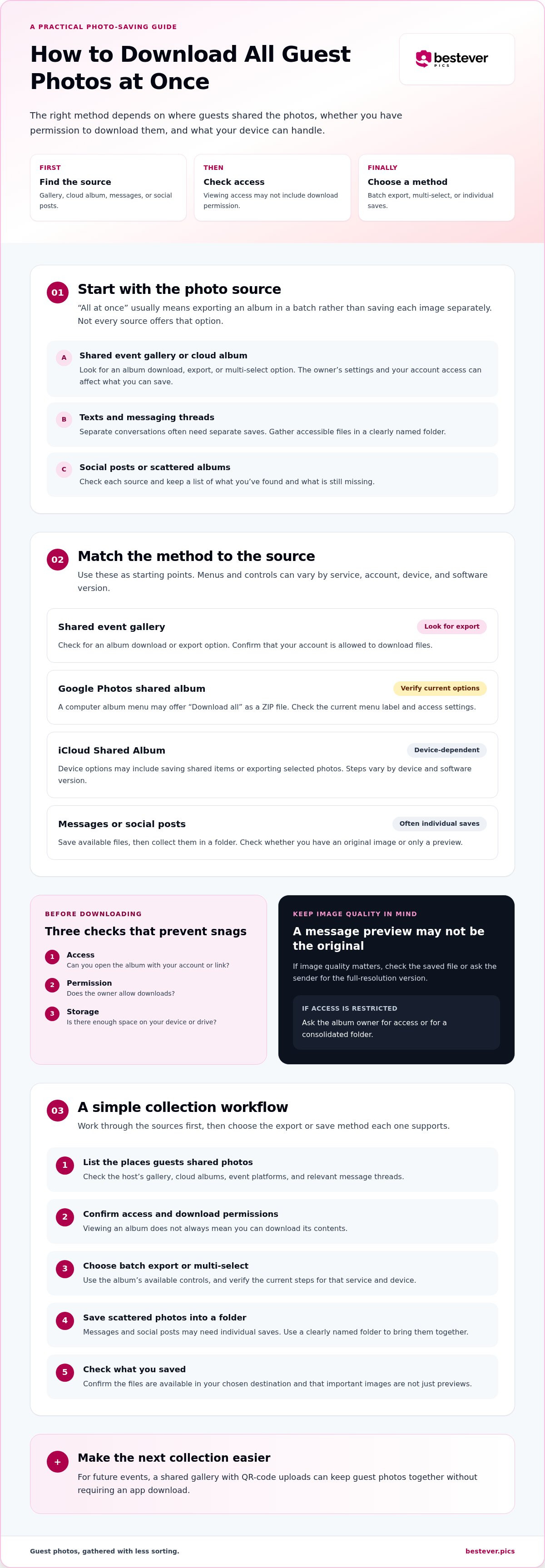
How to Download All Guest Photos at Once in 5 Practical Steps
If you’re working out how to download all guest photos at once, use the album’s available controls rather than assuming every service has a single export button. Confirm access, choose a suitable destination, and check the saved files before removing anything from the source.
- Confirm album access and permission. Ask the host or album owner for the correct link, then open it using the account that was invited. Check that you can download the images, not just view them. If the download option isn’t available, ask the owner to adjust your access or share a folder you can save.
- Choose where the files will go. Decide whether you’ll save the collection to a computer, phone, or connected drive. Check available storage first, especially if you expect a large set of photos. On a phone, find the download destination so you know where to look afterward.
- Select the album export or multi-select option. Look through the album menu for a download or export control. If the service doesn’t offer an album-wide option, check whether you can select several images at a time. Controls vary, so follow the current instructions for that platform and device instead of relying on a button name from another service.
- Wait for the download, then extract files if needed. Keep the browser or app open until the download finishes. If the service saves a ZIP archive, use your device’s file tools to extract it. Keep the archive until you’ve checked the extracted photos.
- Check the collection and organise a backup. Compare the downloaded image count with the album or selection, then open a few files to confirm they work. Sort them into a clearly named folder by event or date, and copy that folder to a separate backup location if you have one. If files are missing or unreadable, return to the source before deleting anything.
For a closer look at how shared albums bring event photos together, read how digital photo sharing works at events.
Make Future Guest Photo Downloads Easier With One Shared Gallery
Guest photos are easier to find when everyone has one clear place to upload them. A shared gallery can cut down on links buried in group chats and pictures arriving through different channels. Collection and export are separate steps, though, so check what the gallery allows you to download before relying on it for a bulk export.
Set up a collection process guests can actually use
Make the upload instructions easy to spot. Put the QR code somewhere guests can pause and scan it, such as an event welcome sign or table display. Add a short prompt explaining what to do next: scan the code, open the upload page, and add photos. Clear instructions help guests get started without searching through messages or asking the host for a link.
Keep the process simple, but remember that guests still need to scan the code and choose to upload their own photos. Some may miss the sign or forget to share, so a friendly announcement can help. For practical display suggestions, see these event photo QR code display ideas.
Choose an app-free gallery for a future wedding
An app-free QR-code gallery gives guests a web-based way to upload photos to one shared digital album without downloading an app. That offers a straightforward contribution option for guests using different phones. The host can return to the album to view the collected images, while checking the gallery’s specific download options separately.
If you’re planning how to download all guest photos at once after a future event, choose a collection method that keeps uploads together and confirm how you’ll export them later. One shared place reduces the search across conversations, but it can’t collect pictures guests never upload or change the gallery’s download settings.
Make Your Next Photo Collection Easier to Save
The key to how to download all guest photos at once is choosing a method that fits their source. Check access and download permissions first, then use the platform’s export or selection options. When the files arrive, confirm they open and keep a backup in a clearly named folder.
For a future wedding, collecting photos in one shared digital album can reduce the scramble across chats and links. With QR-code uploads, guests can contribute without downloading an app, though they’ll still need to scan the code and upload their photos. Check the gallery’s download options separately before counting on a particular export method.
Give guests a simple way to share candid moments, then make the files easier to find when you’re ready to revisit them.
Frequently Asked Questions
Can I download all guest photos at once?
Sometimes. Whether you can download all guest photos at once depends on the service hosting the album, your permissions, and its export options. Open the original shared album rather than separate image links, then look for an album download or multi-select feature. If you can’t find one, ask the album owner whether they can enable downloads or provide a consolidated folder. There isn’t one method that works across every service.
How do I download all photos from a shared album?
Open the album with the account or link that has download permission, then look for an album-level download or export control. If the service doesn’t offer one, check whether you can select several images and save them together. Controls and menu names vary by service, device, and account. Confirm the current instructions for that specific platform before following a step-by-step guide.
Can I download guest photos to my phone?
Often, yes, though the steps depend on the service, your phone, and available storage. Open the shared album and check for download or multi-select options, then confirm where your phone saves the files. Mobile can be convenient for a small selection. If you’re downloading a large collection, a computer may make it easier to review folders and confirm the files arrived.
What happens if there is no download-all button?
First, check that you have download permission and whether the album offers different controls on desktop and mobile. If bulk export isn’t available, try selecting multiple photos if the service supports it. You can also ask the album owner to export the collection or share a folder. Don’t assume that an image you can view can always be saved, or that the saved copy is the original file.
Will downloading photos reduce their quality?
How do I download guest photos from a QR-code gallery?
Open the gallery link connected to the QR code and check which viewing or export options the host account provides. Being able to upload as a guest doesn’t necessarily mean you can download the whole collection. Ask the gallery owner for the right access, then check the platform’s current export options. Confirm the available method before relying on it for a bulk download.
Is it easier to collect guest photos in one gallery before downloading them?
It can be easier to find photos in one shared gallery than to gather them from separate chats and links. Guests still need clear instructions and a simple way to upload, and the host should check the gallery’s access and export options. A shared album can organise contributions, but it can’t guarantee that every guest will upload or that the platform offers a bulk-download feature.


